> For the complete documentation index, see [llms.txt](https://docs.nambisanctuary.org/llms.txt). Markdown versions of documentation pages are available by appending `.md` to page URLs; this page is available as [Markdown](https://docs.nambisanctuary.org/whitepaper/metamask-guides/displaying-tokens.md).
# Displaying Tokens
Generally you can find your tokens on your account page. Most wallets automatically detect tokens held by your address and add them without requiring any manual work. On MetaMask, if you don't visualize your tokens, you can add them following this short guide:
## Enhanced Token Detection
{% tabs %}
{% tab title="Extension" %}
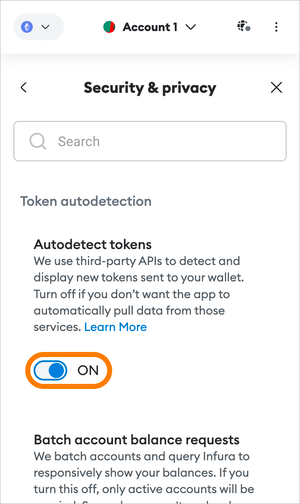
Click on the three vertical dots in the upper right-hand corner, navigate to 'Settings', and then 'Security & Privacy', and make sure the toggle is on.
You can always turn this off later if needed.
{% endtab %}
{% tab title="Mobile" %}
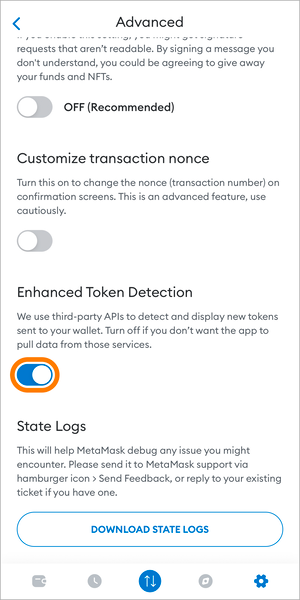
Hit the hamburger icon in the top left of the home screen, and then find 'Settings'. From here, go to 'Advanced', and scroll until you find the token detection toggle.
{% endtab %}
{% endtabs %}
{% hint style="info" %}
Once you've enabled token detection, go back to your asset list, and refresh if necessary — hopefully, any tokens you weren't seeing before are there now. Note that token detection takes place on any EVM mainnet regardless of whether this setting is on or off; enhanced token detection just expands this function to cover the additional networks listed above.
{% endhint %}
## Manually Adding a Token with Search
{% tabs %}
{% tab title="Extension" %}
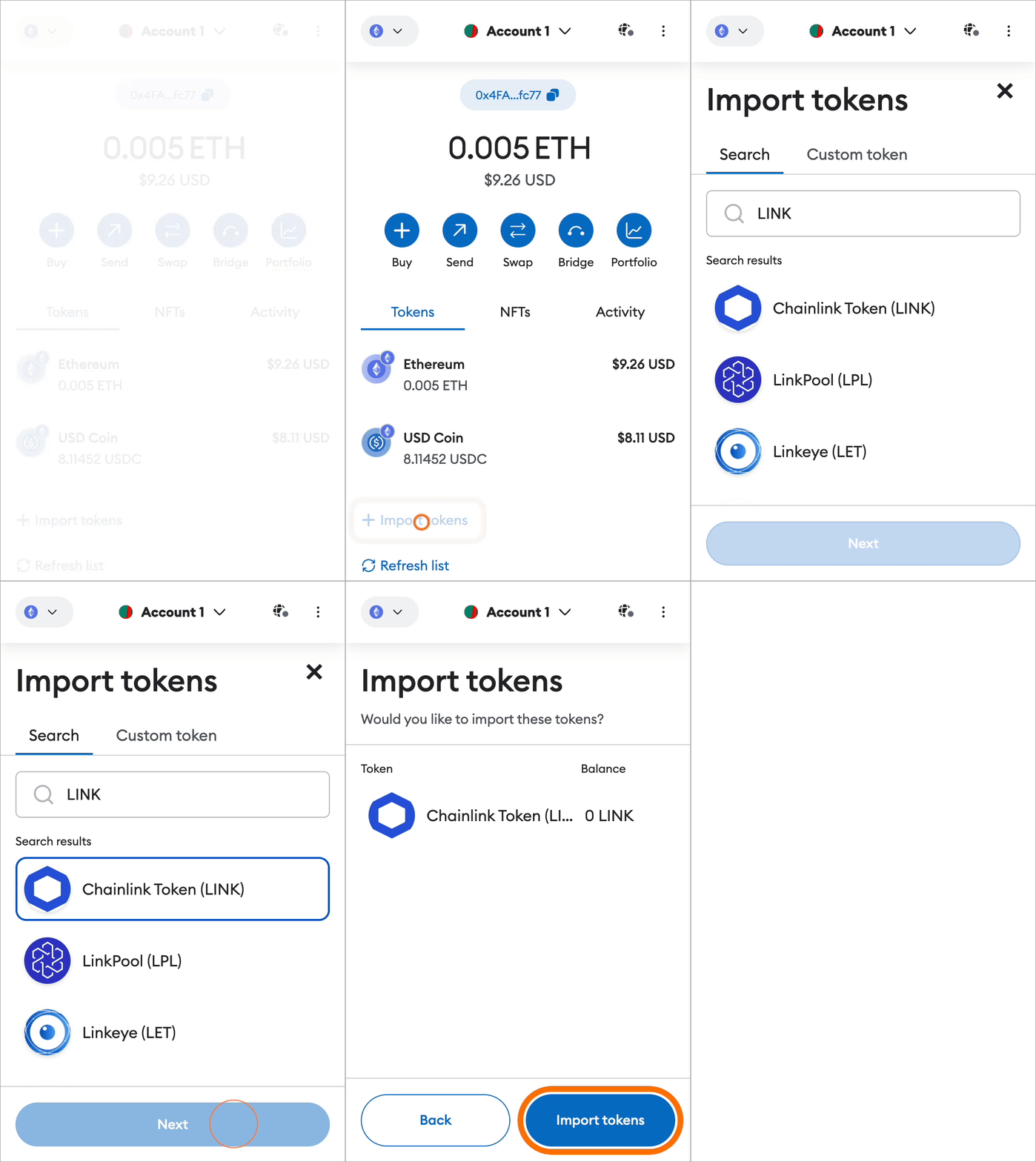
To see your tokens, click on the **Tokens** tab. Your tokens should be listed under this tab. If they're not, and automatic token detection isn't picking them up, then click on 'Import token' at the bottom.
Clicking here will bring you to a search bar:
1. Type in words contained in the token you would like to search. For example, if you would like to look for Chainlink (symbol: LINK), just type in "LI” in the bar, and the search bar will return all the suggestions.
2. Select the token of your interest, and click **Next** to proceed (as soon as you select a token, the button's border will be highlighted in blue).
3. Click **Add token** to proceed. You will then be redirected to your account page. The token you have just added will be listed.
{% endtab %}
{% tab title="Mobile" %}
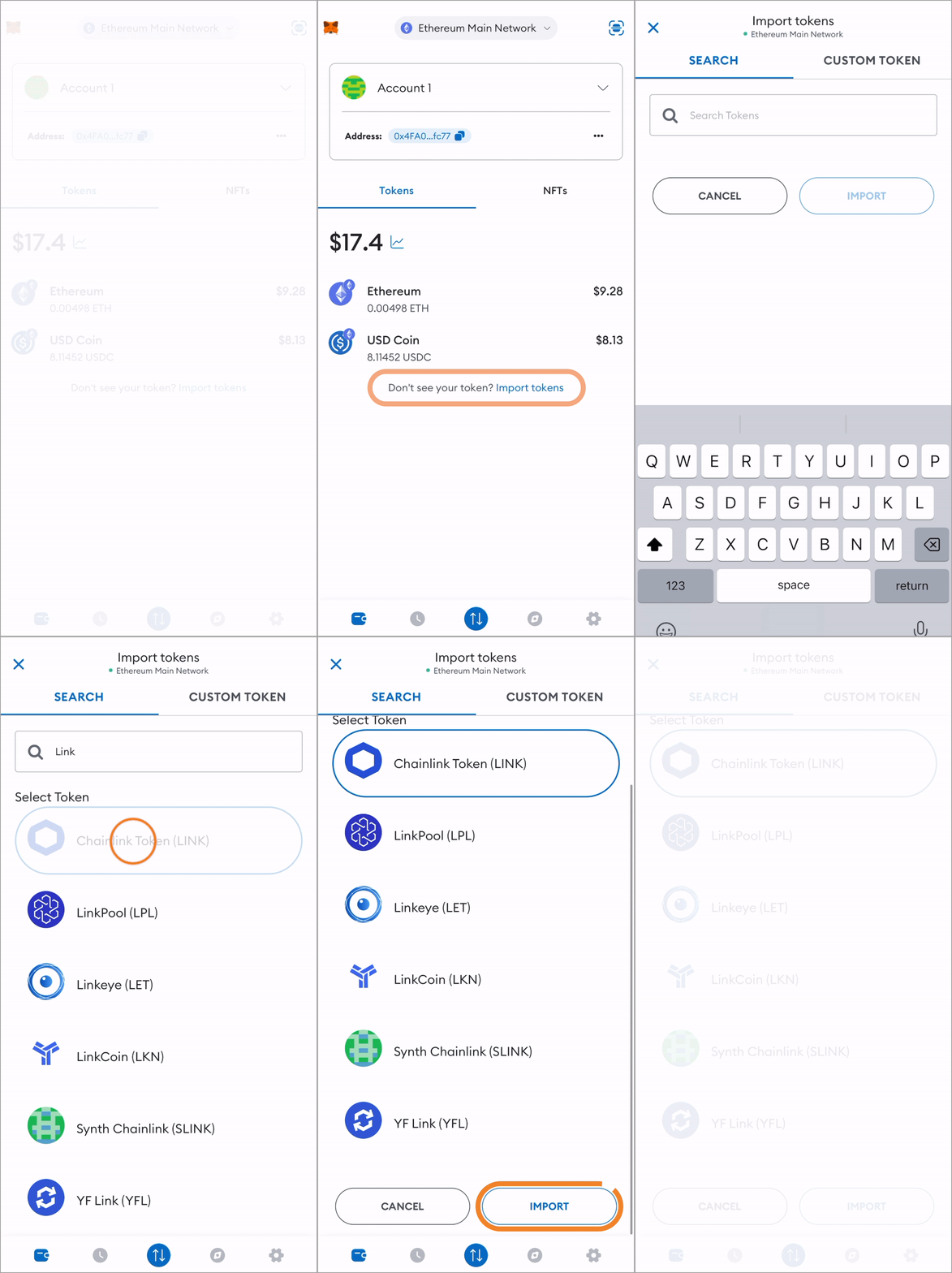
1. On your wallet page, find the 'Import tokens' link at the bottom of the screen.
2. This will bring up the search bar. Type in the name of the token you want to add.
3. When you find the token, tap on it to select it and then scroll down so you see the 'Import' button.
{% endtab %}
{% endtabs %}
For more detailed information, please check out MetaMask's Help Center:
{% embed url="" %}